
Fully local Japanese input
Everything you type in Japanese, from passwords to private messages, stays on your Mac. No cloud, no telemetry, not even update checks. A 3.3-million-word dictionary turns whole sentences into kanji and learns how you write. It stays light and fast.
Install guide Keyboard reference All releases & SHA-256 License
Most Japanese input methods phone home: to send statistics, sync dictionaries or check for updates. Kodama IME was built without any of it.
| Input method | Internet communication |
|---|---|
| Apple's built-in Japanese input | Yes. With "Share Mac Analytics" turned on, statistics about keyboard suggestions are sent to Apple in a form that cannot identify you. When you are signed in to iCloud, text replacements sync with your other devices. |
| Google Japanese Input | Yes. Google's software updater stays running in the background and contacts Google to check for updates. If you opt in, usage statistics and crash reports are sent as well. Google's policy is not to send the text you type. |
| ATOK for Mac | Yes. An internet connection is required to start using it. Signing in to an account enables learning sync and cloud-based conversion features. |
| Kodama IME | None. Fully local, by design. |
What other input methods send is governed by each vendor's policies and your settings. Kodama IME has no networking at all, so even a misconfiguration or an unknown bug has no path to carry what you type off your Mac. Of the input methods above, Kodama IME is the only one that never connects to the internet.
Vendor details are based on official documentation as of October 2026: Apple (analytics, text replacement sync), Google (privacy, Japanese), ATOK (connection at first use, Japanese, cloud services, Japanese)
No account, no sign-up. Add it as an input source and start typing.
Conversion, dictionaries and learning all happen on your Mac. Kodama IME never connects to the internet, not even to check for updates.
Learn moreConversion and learning run inside a single process, with nothing to wait on: no helper processes, no servers. Characters land as fast as you type, and it sits near idle when you're not typing.
Learn moreNames, places, new slang, idioms and Wikipedia titles, 3.3 million entries in all, so rare words come up on the first try.
Learn moreThe word you pick comes first next time, and a phrase boundary you fix stays fixed. Your latest choice always wins, and one key forgets a choice you made by mistake.
Learn moreWords that cannot become kana, and words typed with Shift, are offered exactly as typed, so product names and acronyms need no mode switch.
Learn moreType the Japanese reading of an emoji, arrow or bracket and pick it from the candidates, after the kanji so that everyday conversion stays uncluttered.
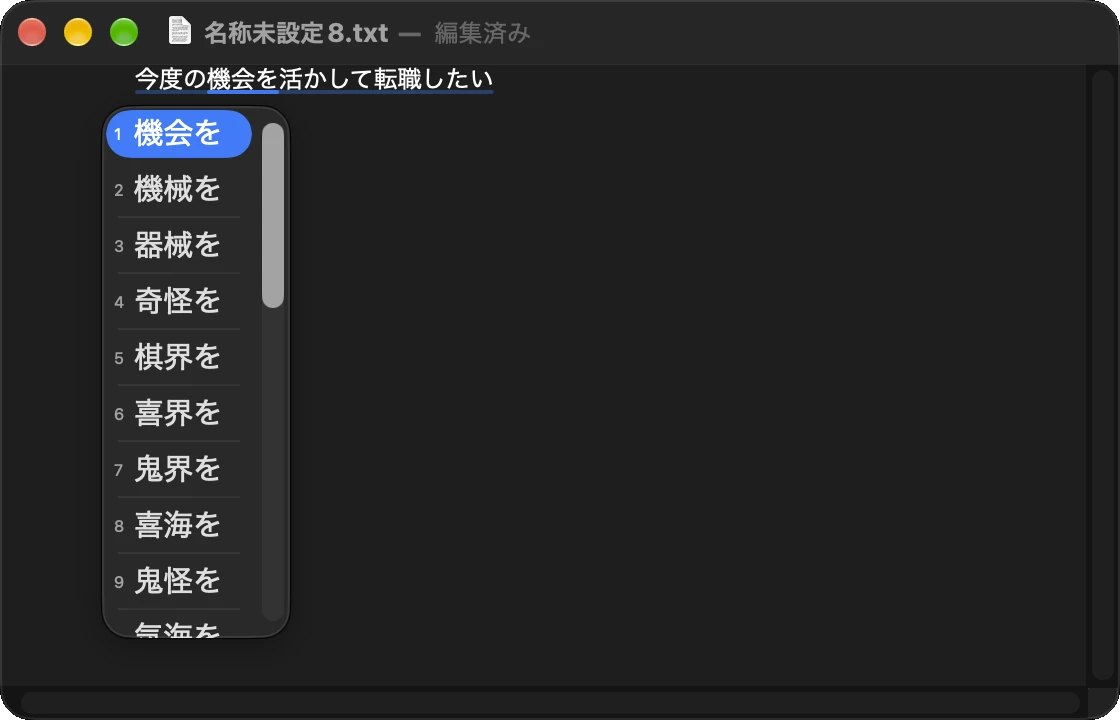
Learn moreConversion, learning and the candidate window all run in a single Kodama IME process. Each keystroke is answered on the spot, without a round trip to a helper process or a server.
The 3.3-million-word dictionary is read straight from its files, looking up only the entries a conversion needs instead of loading everything into memory. A large dictionary costs little memory, and conversion is ready the moment you switch to Kodama IME. When you are not typing it uses almost no CPU, which is easy on your battery.
When you pick a candidate and commit it, Kodama IME remembers both the whole phrase (はしを → 箸を) and its core word (はし → 箸). Because the core word is remembered too, はしが and はしで become 箸 from then on. Your latest choice always wins: alternate between 橋 and 箸 and the top candidate follows you each time.
When you fix a phrase boundary and commit, the boundary itself is remembered. Correct あるきがします to ある|気が|します once, and the same sequence is split there next time.
To undo something learned by mistake, press Shift+Delete while converting. The phrase is converted again without what was learned.
Learning is saved on every commit to learning.tsv (words) and segments.tsv (boundaries) in ~/Library/Application Support/Kodama IME. Both are plain text you can open and inspect, and deleting a file erases what it holds. Each keeps the 10,000 most recently used entries.
Input that leaves letters kana cannot absorb (apple becomes あっpぇ) and input mixed with Shift-typed letters (iPhone) is treated as an English word: it stays one piece, and the letters exactly as typed come first. If you have picked a different spelling before, that one comes first instead.
Press Shift on a letter mid-input and every letter after it stays as typed until you commit or cancel. Every phrase also offers hiragana, katakana, half-width kana, and the letters you typed (a / A / a / A) among its candidates.
Type the Japanese reading of an emoji or symbol and pick it from the candidates. They are listed after the kanji, so everyday conversion stays uncluttered.
| Reading | Candidates |
|---|---|
| やじるし (arrow) | → ← ↑ ↓ |
| こめ (reference mark) | ※ |
| かっこ (brackets) | ()「」【】 |
| かっこひらき / かっことじ | Opening or closing bracket alone |
Readings with a particle attached work too: やじるしを gives →を. Once picked, a symbol comes first next time. Only emoji your Mac can draw as a single image are offered.
| Key | While typing | While converting |
|---|---|---|
| Letters | Romaji becomes kana at the cursor | Commit the current candidate and start a new input |
| Shift+letter | Keep the following letters as typed, until you commit or cancel | Commit and start a new input |
| Space | Convert the whole input into phrases | Next candidate for the selected phrase |
| ↓ / ↑ | - | Next / previous candidate |
| ← / → | Move the cursor in the input | Select the previous / next phrase |
| Shift+← / → | Move the cursor in the input | Shrink / stretch the selected phrase by one character |
| Return | Commit as kana | Commit all phrases |
| Shift+Delete | - | Forget what was learned for the selected phrase and convert it again |
| Delete | Delete the character before the cursor | Back to the input |
| Esc | Cancel the input | Back to the input |
| Shift+Space | Full-width space | - |
The Eisu key switches to ABC and the Kana key back to Japanese; the input menu does the same. Numbers and symbols on the main keyboard are entered full-width, and the numeric keypad stays half-width.
Add your own words with the user dictionary editor, opened from the Kodama IME section of the input menu. Words you add come before every built-in word.
Kodama IME is signed with a Kodama & Co. Developer ID and notarized by Apple. To update, install the new version over the old one; the input sources stay in place.
Remove Kodama IME from Input Sources, then delete /Library/Input Methods/Kodama IME.app. To remove your learning and user dictionary as well, delete ~/Library/Application Support/Kodama IME.
The dictionary is Mozc's, the open source edition of Google Japanese Input, extended with the Mozc UT dictionaries, which collect words Mozc lacks: personal names, place names from Japan Post's postal code data, new words and proper nouns, and Wikipedia article titles.
Kodama IME ships with the following dictionaries. Each keeps its own license; the full texts are inside the app, and "About Kodama IME" in the input menu lists them.
| Dictionary | License |
|---|---|
| Mozc open source dictionary (with IPAdic and the Okinawa dictionary) | BSD 3-Clause and others |
| Place names (Japan Post postal code data) | Public domain |
| Personal names | Apache License 2.0 |
| SudachiDict (Works Applications) | Apache License 2.0 |
| mecab-ipadic-NEologd | Apache License 2.0 |
| Japanese Wikipedia article titles | CC BY-SA |
| EDICT2 (Electronic Dictionary Research and Development Group) | CC BY-SA 4.0 |
| SKK dictionary | GPL 2.0 or later |
| alt-cannadic | GPL 2.0 |
The Mozc UT dictionaries are compiled by UTUMI Hirosi.
| Version | Released | Changes & download |
|---|---|---|
| 1.1.1 | Oct 7, 2026 |
SHA-256 6c0a0a6e44a59189125f734f27fc127702edd6ab9769fba008a4cc4eb16111f6 |
| 1.1.0 | Oct 6, 2026 |
SHA-256 fa8f0a68de4e5fbf4e0466bdad59934635ffd472c7326386b5db8f081e286b24 |
Verify a download in Terminal:
shasum -a 256 ~/Downloads/Kodama-IME-1.1.1.pkg
Free for macOS 14 Sonoma or later. Questions or bug reports? Contact us.
Download Kodama IME 1.1.1